Most business videos are made for one kind of viewer: someone watching with the sound on, eyes on the screen, from start to finish. In reality your audience includes people who are Deaf or hard of hearing, people who are blind or have low vision, people with cognitive or learning differences, and a very large group watching on a phone with the sound off. Making video accessible isn’t a niche extra. It makes the content work for more of the people you’re paying to reach.
This guide covers what accessible video actually involves, what the relevant standards say, and how to build it into a production without blowing out the budget.
Why accessibility matters for business video
There are three practical reasons to care.
- Reach. Captions and clear on-screen text help anyone watching without sound. That includes commuters, open-plan offices and most people scrolling social feeds.
- Compliance. Australia’s Disability Discrimination Act 1992 applies to goods and services delivered online, and government agencies and many large organisations now expect suppliers to meet the Web Content Accessibility Guidelines (WCAG). If you sell to government, education or enterprise, accessible video is increasingly part of the brief.
- Search. Transcripts and captions give search engines text they can understand. A video with an accurate transcript is simply easier for Google to index than one with none.
What WCAG asks of video
WCAG 2.2 is the current version of the guidelines, and Level AA is the usual target. For pre-recorded video the key requirements are:
- Captions for all speech and important sounds (WCAG 1.2.2).
- Audio description or a text alternative for important visual information that isn’t spoken (1.2.3 and 1.2.5).
- A transcript for audio-only content such as podcasts (1.2.1).
- No flashing more than three times per second (2.3.1).
- Accessible player controls that work with a keyboard and screen reader, and no auto-playing audio that can’t be paused.
You don’t need to memorise the numbers. What matters is that sound needs a text equivalent, and important visuals need a spoken or written equivalent.
Captions: open, closed and burned-in
Closed captions are a separate file, usually .srt or .vtt, that viewers can switch on or off. They’re the best option for your website and YouTube because they’re searchable and can be edited later.
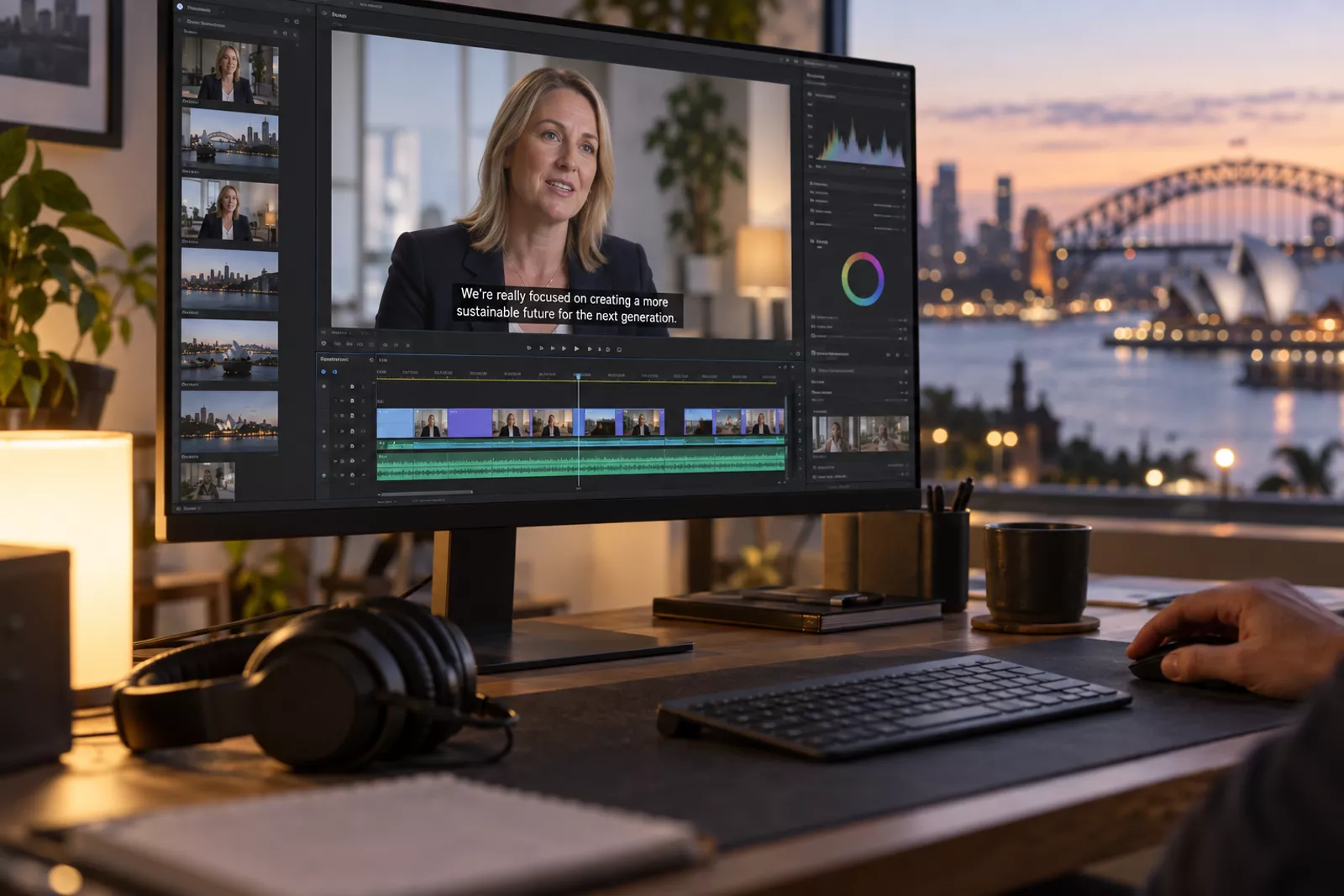
Open (burned-in) captions are part of the picture. They’re the norm for social media, where many people never turn captions on and some platforms handle caption files inconsistently. Styling matters here: large, high-contrast text placed away from the platform’s interface buttons.
Whichever you use, accuracy matters. Auto-generated captions are a useful starting point, but they regularly mangle names, suburbs, product terms and Australian accents. Always have a person review them before publishing.
Audio description without the awkwardness
Audio description narrates the key visual information, such as on-screen text, actions or scene changes, for viewers who can’t see it. It sounds complex, but the simplest approach is to plan for it at script stage:
- Have presenters say what’s on screen (“As you can see on this chart, enquiries doubled…”).
- Voice any important on-screen text in the voiceover.
- Avoid “silent” sequences that carry key information purely through visuals.
When the script already describes the visuals, you often don’t need a separate described version at all. That’s usually the most elegant and cost-effective route.
Transcripts and on-page text
Publish a transcript on the same page as the video, either in full or as a well-edited summary with the full text in an expandable section. Transcripts help people who prefer reading, people using screen readers and search engines, and they cost very little once the captions exist.
Design choices that help everyone
- Contrast: keep on-screen text and graphics at strong contrast against the background.
- Timing: leave text on screen long enough to read twice.
- Clear audio: good microphones and a clean mix help viewers who are hard of hearing much more than music-heavy edits.
- Plain language: short sentences and familiar words help viewers with cognitive differences and viewers who speak English as a second language.
Building accessibility into your budget
Accessibility is cheapest when it’s planned from the start. Retrofitting captions and descriptions to a finished video is always more work than writing for them. When you brief a production company, ask for:
- A script that describes key visuals.
- Reviewed caption files (.srt or .vtt) for every deliverable.
- Burned-in caption versions for social media.
- A transcript for your website.
At Zyon Films we can include caption files and captioned social versions as standard deliverables on corporate video projects, so accessibility is part of the plan rather than an afterthought.
FAQs
Are auto-generated captions good enough?
They’re a starting point, not a finished product. Automatic captions often get names, jargon and local place names wrong. A human review brings them up to a professional standard.
Do I need audio description for every video?
Not if the important visual information is already spoken. Writing the script to describe what’s on screen is often enough, and it’s the simplest way to meet the guideline.
Which caption format should I use?
Use .srt or .vtt files for your website and YouTube, and burned-in captions for Instagram, TikTok, LinkedIn and Facebook feeds.
Does accessibility help SEO?
Yes. Transcripts and captions add relevant, indexable text to the page, which helps search engines understand what your video is about.
Planning a video and want it accessible from day one? Talk to our team about captions, transcripts and inclusive scripting for your next project.